Storyla AI: Photo to Video
- 0.0
- Rating
- 10.00K
- Installs
- Free
- Price

 Analysis by App-foxy
I tried Storyla AI: Photo to Video as a quick way to turn still images into short, animated creations, and its appeal became clearest in a shared household setting. One person can have the original photo, another can suggest a mood or effect, and someone else can decide whether the result is worth saving or sharing. That makes it more interesting than a simple photo filter, but it also means the app needs a little thought before several people use it on the same device.
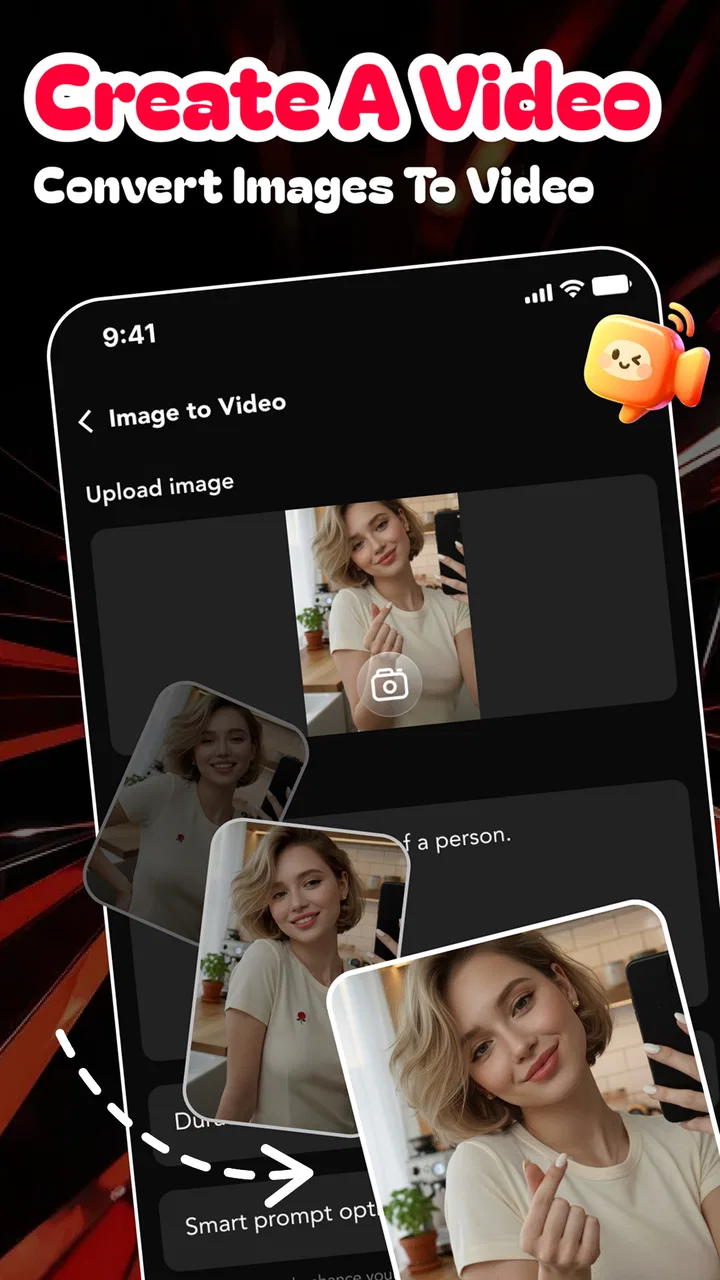
The app sits in the art and design category, comes from developer ayselmvaysin, and is free to install. Its central idea is straightforward: take a photo, apply an AI-driven animation or creative treatment, and turn the image into a video-like result. I found that concept easy to understand, especially for anyone who wants something more lively than a static picture without learning a full video editor.
My overall impression is positive for casual visual experiments, social posts, greetings, and small personal projects. I would not treat it as a replacement for a serious editor, nor would I hand it to a young child without supervision. The mature age classification matters here, particularly when photos belong to several people or when the app is used on a family tablet.
You May Also Like

 AccuWeather: Weather Radar
AccuWeather Review: A Quick, Clear Forecast for Everyday Decisions
For everyday plans, the best forecast is the one you can understand quickly. AccuWeather makes rain timing, radar, and local conditions easy to act on, with a few trade-offs.

 Hill Climb Racing
Why Hill Climb Racing Still Turns Crashes Into One More Run
A tiny car, a bumpy hill and one more upgrade: Hill Climb Racing keeps resurfacing because its simple chaos makes every near-miss feel personal.

 AliExpress - Shopping App
AliExpress Makes Global Shopping Feel Personal, but Shoppers Bear the Risk
AliExpress turns a global marketplace into a pocket-sized discovery engine. Its reach is useful, its shopping loop compelling, and its trade-offs easy to miss.

 Lords Mobile: Kingdom Wars
Lords Mobile Is a Kingdom-Building Routine, Not a Quick Match
A case-by-case verdict on the building, battles, device demands, and social commitments that make Lords Mobile rewarding for some players and exhausting for others.

 PDF Scanner app - TapScanner
TapScanner Makes Paperwork Easier to Capture, Check, and Share
TapScanner makes scanning with a phone feel less like a rescue operation and more like a dependable step in getting work done. Its capture tools are useful, though not flawless.

 Block Blast!
Block Blast! Shows How Much a Puzzle Game Can Leave Out
A quiet grid game shows why puzzle players increasingly value instant clarity, repeatable skill and low-pressure play—and where the genre still needs to catch up.
More From Our News Desk
View All News


How Storyla AI works when several people share a device
When several people share a device, I’d treat Storyla AI as a one-person-at-a-time creative session rather than a shared gallery everyone can browse freely. Before opening it, agree who chooses the photo, who approves any purchase, and who decides whether a finished animation may be shared; that small routine keeps a fun experiment from becoming a privacy or spending surprise.
A practical household scenario
Imagine a family preparing a digital birthday greeting. One person chooses a portrait, another selects a template, and a third wants to test a more playful animation. This is the kind of task where the app makes sense: it can give an ordinary image a little movement and personality without requiring everyone to understand timelines, keyframes, transitions, or audio mixing.
I would begin with a copy of the image rather than the only original. That habit is useful with any creative app, but it is especially sensible here because experimentation is part of the appeal. A child might want a dramatic effect, while an adult may prefer something restrained. Keeping the source image separate lets everyone try ideas without turning the shared photo library into a confusing collection of edited versions.
The strongest household use is collaborative decision-making, not simultaneous editing. I would let one person operate the app while the others watch and choose between results. This avoids the familiar shared-device problem where several people tap different controls at once and nobody remembers which version was preferred.
For a quick greeting, a travel memory, or a funny reaction image, the workflow feels more approachable than opening a conventional video editor. Traditional editors offer much finer control, but that control can slow down a group that simply wants to see an image move. Storyla AI is better when the creative goal is “make this feel alive” rather than “build a carefully timed production.”
What to prepare before importing photos
The quality of the starting image matters more than I expected. A clear subject with a simple background gives the visual treatment an easier job than a crowded photo containing several faces, small details, or overlapping objects. I would choose a well-lit image with the main person or object easy to identify, especially when the result is intended for someone else to view on a phone.
A useful trick is to prepare several candidate images first and only animate the strongest one. That saves time and reduces the temptation to keep changing effects when the real problem is the source photo. In a household project, this also makes coordination easier: everyone compares a small, sensible selection instead of scrolling through an entire gallery.
I would also agree on the purpose before starting. A gentle animation for a family greeting calls for a different choice than a surreal clip intended for friends. Without that decision, people often judge results by different standards. One person may value realism, while another wants the most exaggerated transformation available.
Keeping personal boundaries clear
Shared-device use raises a question that is easy to overlook: whose photos are being selected? I would avoid casually browsing another person’s gallery, even when the device belongs to the household. The safest routine is for the photo owner to choose the image or stay present while it is imported. That keeps creative collaboration from becoming accidental access to private material.
The same principle applies to finished creations. A result made from someone’s portrait should not automatically become a household wallpaper, social post, or message attachment. I prefer asking the subject before sharing, particularly when the animation changes their expression or gives the image a comic tone they may not appreciate.
These boundaries are not a special feature of the app; they are good practice around any AI photo tool. The difference is that animation can make an image feel more public and more expressive than the original. A harmless family snapshot may become embarrassing once it is turned into a conspicuous moving clip.
Setup expectations on older devices
Storyla AI supports Android 7.0 and later, which gives it a broad compatibility range for Android users. That does not mean every older phone will feel equally comfortable during creative work. Animation and AI-assisted processing can be more demanding than viewing a photograph, so I would keep some free storage available and avoid running several heavy apps at the same time.
The current version is 1.0.2. I would approach it as a relatively focused tool rather than a mature all-purpose studio. That is not automatically a weakness, but it does shape expectations: install it for the photo-to-video idea, not because you expect a complete production suite with every professional control.
Since the app is free to install but includes in-app purchases ranging from $1.99 to $99.99 per item, I would make the payment boundary part of the setup conversation before handing over a shared phone. The wide range means a casual user should pay attention to what is being selected rather than assuming every creative option is included in the free experience.
Coordinating creative choices
When several people are involved, I find it helpful to use a simple turn-taking system: choose the photo, choose one visual direction, review the result, then decide whether another attempt is worthwhile. This sounds basic, but it prevents endless tapping through templates and effects without a clear goal.
A more advanced approach is to create a small “brief” before opening the app. Write down the subject, the intended audience, and the desired feeling in a few words. For example, a family greeting might aim for warm and playful, while a product sketch might need clean and energetic. This gives the person operating the phone a useful filter when the available creative choices become distracting.
I also recommend judging the result without sound or extra context first. If the visual movement looks confusing on its own, adding a message or sharing it will not fix the underlying problem. This is a practical distinction between an attractive preview and a creation that communicates clearly.
For shared projects, save or label results in a way that makes the preferred version obvious. Names such as “birthday calm” or “travel playful” are more useful than leaving several nearly identical files in the gallery. The app can start the creative process, but ordinary household organization still determines whether the final result is easy to find.
Where the app fits beside regular editors
Compared with a conventional mobile video editor, Storyla AI feels aimed at speed and visual novelty. A standard editor is the better choice when I need precise cuts, manual timing, layered audio, captions, controlled transitions, or a repeatable brand style. Those tools reward patience and give me a clearer sense of exactly what will happen at each moment.
Compared with a normal photo editor, this app offers a more dramatic change in format. A photo editor is preferable when the goal is correcting exposure, cropping, removing distractions, or making a portrait look polished while keeping it still. Storyla AI is more appropriate when motion itself is the point.
The trade-off is control. AI-assisted effects can produce a pleasing surprise quickly, but a surprise is not the same as precision. If a household project has strict requirements, I would use Storyla AI for the first idea and a traditional editor for the final refinement. That two-step workflow is more realistic than expecting one lightweight app to handle every stage.
Age, trust, and mature content context
The mature 17+ content rating should influence who uses the app and how. I would not interpret a creative photo tool as automatically suitable for children simply because its main action is visual. The age context is a reminder that a parent or guardian should decide whether it belongs on a shared family device and whether a teenager may use it independently.
For older teens and adults, the important trust issue is not only the effect itself but also the source material. Photos of classmates, relatives, coworkers, or strangers should not be treated as raw material just because they are available in a gallery. Consent matters more when an image is transformed into something that may look unusual or imply an action that never happened.
I would also keep account responsibility clear. If a household has one device used by several people, the person who installs the app should explain who is allowed to make purchases, who approves sharing, and who handles the finished files. I would not assume that a shared device creates separate personal spaces or that every user will automatically understand the same boundaries.
This is particularly important because the app is free to start but has paid items. Before a teenager or guest experiments with it, I would explain that tapping through creative options may lead to purchase decisions. The safest approach is simple: the device owner reviews any payment prompt, and nobody treats an available button as permission to buy.
Privacy-minded habits for personal images
My preferred workflow is conservative. I select a duplicate or a non-sensitive image, review the result carefully, and only then decide whether it deserves to be kept. I avoid using documents, private conversations, medical images, or photographs containing people who have not agreed to the experiment. Even when a result stays on the phone, the original subject may not want that transformation made.
I would also review the finished clip before sending it anywhere. AI-style movement can emphasize facial expressions, backgrounds, or visual details in ways that are not obvious from the original image. A quick private review catches awkward results before they become a group-chat surprise.
For a shared household, a small folder dedicated to temporary creations can help. It separates experiments from important family photos and makes cleanup easier. Once the project is complete, I would remove unwanted attempts rather than letting them accumulate indefinitely.
Who will enjoy it most
I think Storyla AI is a good fit for people who want a fast creative result and do not want to learn a complicated editing interface. It suits casual creators, families making greetings, users preparing a playful post, and anyone curious about giving a still image a more animated presentation.
It is also useful for brainstorming. A designer or content creator can use an animated interpretation to explore a mood before committing time to a polished production. The result may not be the final asset, but it can reveal whether a concept feels lively, humorous, dramatic, or simply distracting.
People who should skip it are those seeking dependable professional control, detailed manual animation, or a predictable output for every image. I would also avoid recommending it to anyone who dislikes experimenting with paid options or who cannot comfortably supervise use on a shared device.
My household verdict
After using it as a lightweight creative tool, I see Storyla AI as a convenient starting point rather than a complete video-making environment. Its value comes from lowering the distance between “I have a photo” and “I have something animated enough to share.” That is genuinely useful for everyday moments, especially when several people are choosing ideas together.
The best results come from a disciplined workflow: select a suitable image, agree on the intended mood, try one direction at a time, review the output privately, and ask before sharing someone else’s likeness. Those steps address the main weaknesses without taking away the app’s spontaneity.
With over 10 thousand installs, it remains a relatively small app in the broader Android ecosystem, but its focused purpose is easy to understand. I would try the free version first, keep purchase decisions with the device owner, and compare its results with a traditional editor before choosing it for an important project.
My recommendation is cautious but positive: use it when speed, experimentation, and a shared creative moment matter more than exact control. For a household, the app works best when age, consent, account responsibility, and spending boundaries are agreed before anyone starts tapping through its effects.
FAQs for Storyla AI: Photo to Video
01What is Storyla AI: Photo to Video, and what can it do?
Storyla AI: Photo to Video is a creative app that turns still photos into short animated videos using artificial intelligence. After selecting images, you can apply motion effects, transitions, visual styles, and sometimes music or text to produce content suitable for social media. It is designed for quick results rather than detailed, professional video editing, so the final animation may vary depending on the quality and composition of your photos.
02How do I create a video with Storyla AI: Photo to Video?
The usual process is straightforward: choose one or more photos from your device, select an available animation or storytelling style, adjust optional settings, and start the generation process. Depending on the effect, processing may take a little time because the app needs to create the motion automatically. Reviewing your images beforehand is recommended, since well-lit, sharp photos with clearly visible subjects generally produce more convincing results.
03Is Storyla AI: Photo to Video free to use?
The app may offer free tools or a limited number of generations, while advanced effects, higher-quality exports, additional templates, or an ad-free experience can require payment. Before confirming a subscription or purchase, check the pricing page, trial conditions, renewal terms, and export limitations shown in the app. Availability of features and plans can differ between Android and iOS and may also change after updates.
04Does Storyla AI: Photo to Video require an internet connection?
An internet connection is likely required for many of the app’s AI features because photo animation and video generation may be processed on remote servers. Basic actions such as browsing saved files or preparing media could work offline, but generation, cloud-based effects, account verification, or downloading the final result may not. For the most reliable experience, use a stable Wi-Fi or mobile-data connection and avoid closing the app during processing.
05Are my photos safe when I use Storyla AI: Photo to Video?
Before uploading personal images, review Storyla AI’s privacy policy and the permissions requested by the app. AI video tools may temporarily process photos on external servers, so users should understand how files are stored, used, retained, and deleted. Avoid uploading sensitive documents or private images unless you are comfortable with the stated practices. Also check whether generated videos are saved locally or synchronized with an online account.
Pros
- Turns still photos into engaging short videos with minimal effort.
- AI effects can add movement and personality to ordinary images.
- Useful for creating content for social media and messaging apps.
- Simple interface makes it accessible to beginners.
- Quick previews help test different animation styles easily.
Cons
- Results can vary noticeably depending on the quality of the source photo.
- Some advanced effects may require a subscription or paid credits.
- AI animations may occasionally look unnatural or distort faces.
- Export options and video quality may be limited on the free plan.
- Processing can take longer when creating complex effects.

Storyla AI: Photo to Video
Gallery